Rules
Rules are conditional logic that determine when fields become required based on cart conditions. Rules can then be assigned to Fields to control when they are marked as required.
Rules are always assigned to Fields.
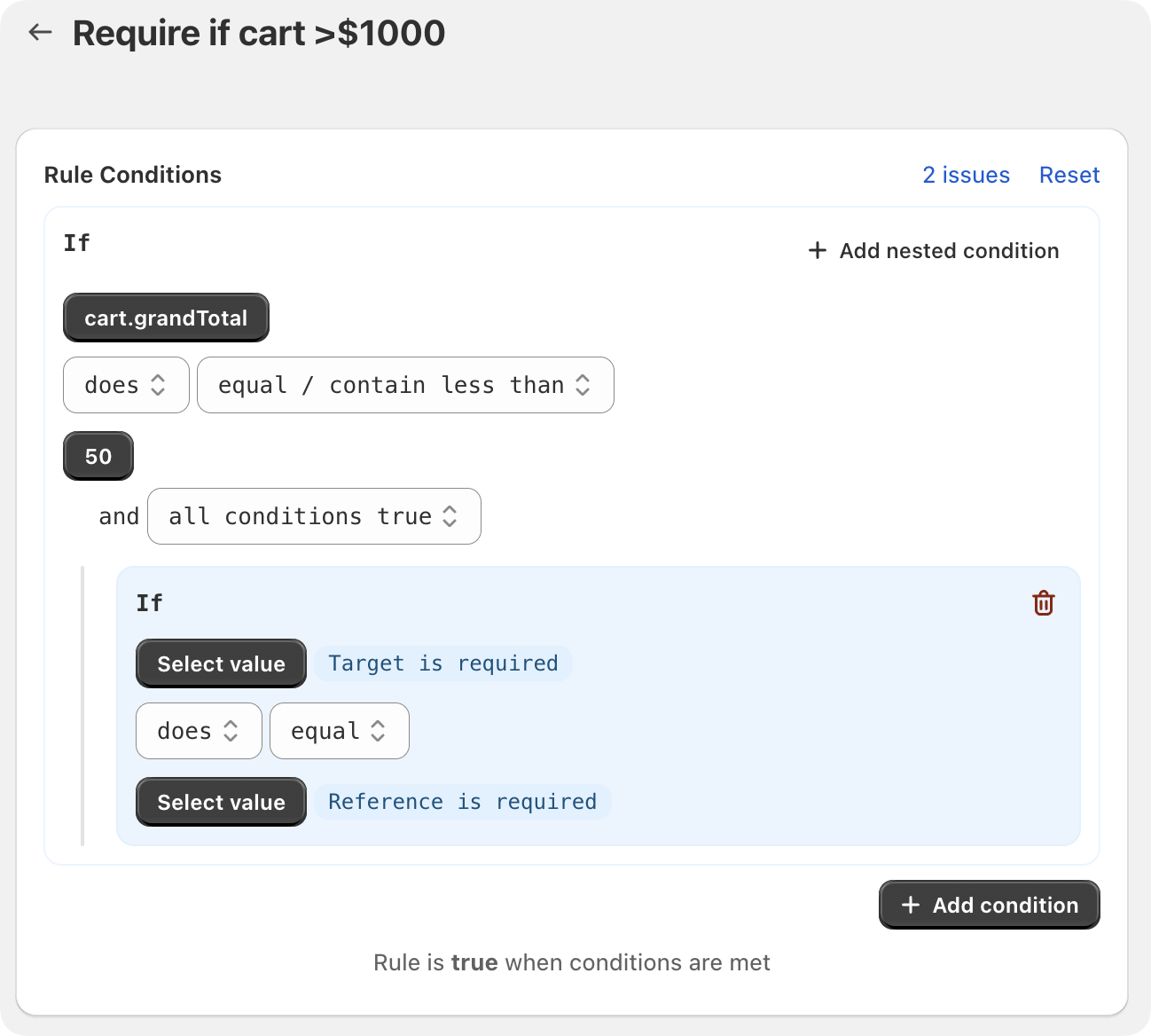
How Rules Work
Rules evaluate conditions about the cart and, when those conditions are met, make any fields with that Rule assigned, required. This allows you to require a Field only when certain cart conditions are met.
Rule Structure
A rule consists of one or more conditions that are evaluated against the current cart state. Each condition has:
- Target: The cart property or value being checked (e.g.,
cart.subtotal,cart.lineItems.list.title) - Polarity: Whether the condition is positive (
does) or negative (doesNot) - Operator: How to compare the target and reference (e.g.,
equal,include,containMoreThan) - Reference: The value to compare against (can be a cart property or a static value)
- Logical Operator: How multiple conditions are combined (
ANDorOR)
Rule Evaluation
When a tile or workflow is opened in the POS app:
- Rules are evaluated against the current cart state
- Each condition checks if its target value matches the reference value using the specified operator
- Multiple conditions are combined using the logical operator (
ANDrequires all conditions,ORrequires at least one) - If the rule evaluates to
true, assigned fields become required
Rules are evaluated as the cart changes, ensuring fields become required or optional dynamically based on the current cart state.
Building Rules
Available Operators
Rules support various comparison operators to check cart conditions:
| Operator | Description | Example Use Case |
|---|---|---|
Equals | Exact match | Cart subtotal equals $100 |
Contain | Contains substring | Product title includes "Gift" |
Starts with | Begins with text | SKU starts with "VIP-" |
Ends with | Ends with text | Product title ends with "Sale" |
Exists | Value exists (not empty) | Customer ID exists |
Contain more than | Greater than comparison | Cart subtotal > $50 |
Contain less than | Less than comparison | Cart subtotal < $100 |
Contain exactly | Exact count (for arrays) | Cart has exactly 3 items |
Field Types and Rule Evaluation
Rules are evaluated based on the type of data being compared. Different field types support different operators and are evaluated differently.
Supported Field Types
Fields in ShopFields can have the following types:
Text: String values (e.g., product titles, SKUs, customer names)Text[]: Arrays of strings (e.g., multiple product titles, tags)Number: Numeric values (e.g., cart totals, quantities, prices)Number[]: Arrays of numbers (e.g., multiple prices, quantities)Boolean: True/false values (e.g., device.isTablet, taxable flags)Boolean[]: Arrays of booleans
How Types Affect Evaluation
The type of the target value determines how operators work:
Text Types (Text, Text[]):
- Support text-based operators:
equal,include,startsWith,endsWith equalperforms exact string matchinginclude,startsWith,endsWithperform substring matching- For
Text[]arrays, use array operators (all,some,none,count) to specify how items are evaluated
Number Types (Number, Number[]):
- Support numeric comparison operators:
equal,containMoreThan,containLessThan,containExactly - Values are compared numerically (e.g.,
100equals100.0) - For
Number[]arrays, comparisons can check individual items or array length containExactlywith arrays checks the array length
Boolean Types (Boolean, Boolean[]):
- Support:
equal,exist,emptyOrNull equalcompares true/false valuesexistchecks if value is not null/undefined- For
Boolean[]arrays, use array operators to evaluate multiple boolean values
Type-Specific Examples
Text Example: Require "Gift Message" when product title includes "Gift"
- Target:
cart.lineItems.list.title(Text[]) - Operator:
include - Reference:
Gift(static text) - Array Operator:
some
Number Example: Require "Manager Approval" when cart subtotal > $1000
- Target:
cart.subtotal(Number) - Operator:
containMoreThan - Reference:
1000(static number)
Boolean Example: Require "Tablet Mode" when device is a tablet
- Target:
device.isTablet(Boolean) - Operator:
equal - Reference:
true(static boolean)
Available Data Sources
Rules can check most values available locally on the point of sale API.
Cart Properties
cart.subtotal- Cart subtotal amount (number)cart.taxTotal- Total tax amount (number)cart.grandTotal- Grand total amount (number)cart.note- Cart note text (string)cart.lineItems.totalItems- Total quantity of all items (number)
Line Items
Line items represent the products currently in the cart, and are structured as a list (array). This means each property of a line item—such as the product title or SKU—is actually represented as an array, with one entry per item in the cart. When you check these properties in a rule, you're comparing against all the items in the cart (for example, checking if any or all product titles contain a certain value).
You can access line item properties using cart.lineItems.list.*:
cart.lineItems.list.title- Product titles (array)cart.lineItems.list.sku- SKUs (array)cart.lineItems.list.quantity- Quantities (array)cart.lineItems.list.price- Prices (array)cart.lineItems.list.productId- Product IDs (array)cart.lineItems.list.variantId- Variant IDs (array)cart.lineItems.list.vendor- Vendor names (array)cart.lineItems.list.properties- Line item properties (array)cart.lineItems.list.discount.*- Discount information for line items (array)cart.lineItems.list.taxLines.*- Tax information for line items (array)
Because line items are arrays, you can use array operators (see below) to specify whether your rule should match all line items, at least one line item, no line items, or an exact count.
Example:
To require a field when at least one product in the cart has a SKU starting with "GIFT-", use:
- Target:
cart.lineItems.list.sku - Operator:
startsWith - Reference:
GIFT- - Array Operator:
some(default)
For more advanced rules, such as checking if all products match a certain condition, change the array operator to all.
Customer Information
customer.id- Customer ID (string)
Device Information
device.id- Device ID (string)device.name- Device name (string)device.isTablet- Whether device is a tablet (boolean)device.locale- Device locale (string)device.scanner- Scanner information (string)
Session Information
session.locationId- Location ID (string)session.currency- Currency code (string)session.shopDomain- Shop domain (string)session.staffMemberId- Staff member ID (string)
Cart Discounts
cart.discounts.list.*- Cart-level discount information (array)
Array Operators
When checking array values (like line items), you can specify how to evaluate multiple items:
all: Every item must meet the conditionsome: At least one item must meet the condition (default)none: No items should meet the conditioncount: Exactly N items must meet the condition (requiresarrayCount)
Example: Check if all products in cart have SKU starting with "VIP-":
- Target:
cart.lineItems.list.sku - Operator:
startsWith - Reference:
VIP- - Array Operator:
all
Logical Operators
When you have multiple conditions, use logical operators to combine them:
AND: All conditions must be true (default)OR: At least one condition must be true
Example: Require field when (cart total > $50) OR (cart has product with "Gift" tag)
Polarity (Does vs Does Not)
Each condition has a polarity that determines whether it checks for a positive or negative match:
does: The condition is true when the comparison matches (e.g., "cart subtotal does contain more than $50")doesNot: The condition is true when the comparison does NOT match (e.g., "cart subtotal does not contain more than $50")
Example: Require "Manager Approval" when cart total does NOT exceed $1000
- Target:
cart.subtotal - Polarity:
doesNot - Operator:
containMoreThan - Reference:
1000
Common Use Cases
Cart Value Rules
Make a field required when cart total exceeds a certain amount.
Example: Require "Delivery Instructions" for orders over $100
- Target:
cart.subtotal - Operator:
containMoreThan - Reference:
100
Product-Based Rules
Make fields required when specific products are in the cart.
Example: Require "Engraving Message" when any product title includes "Jewelry"
- Target:
cart.lineItems.list.title - Operator:
include - Reference:
Jewelry - Array Operator:
some
Customer-Based Rules
Make fields required based on customer information.
Example: Require "Membership Number" when customer exists
- Target:
customer.id - Operator:
exist
Combination Rules
Combine multiple conditions for complex logic.
Example: Require "Gift Message" when cart total > $50 AND customer exists
- Condition 1:
cart.subtotalcontainMoreThan50 - Condition 2:
customer.idexist - Logical Operator:
AND
Making Fields Required
Fields can be made required in two ways:
-
Always Required: Mark the field as "Required" in field settings. The field will be required on every order.
-
Conditionally Required: Assign one or more rules to the field. The field becomes required only when the rule conditions are met.
You can combine both approaches, but typically you'll choose one based on whether the field should always be required or only conditionally required.
What Happens When a Field is Required
When a field becomes required (either always required or through a rule), ShopFields provides visual feedback in the POS app:
-
Tile assigned to a field that is required: If a tile is assigned to the required field, the tile will be highlighted to indicate the field needs to be completed.
-
Tile assigned to show all required fields: If a tile is not assigned to a specific field (or is configured to show all required fields), the tile will display a badge showing the number of required fields that are missing.
This visual feedback helps staff identify which fields need attention before completing an order.
Publishing Rules
Like fields and workflows, rules have a published/draft status:
- Published rules are active and evaluated in the POS app
- Draft rules are hidden and not evaluated
- Only published rules affect field requirements
Rule Messages
When assigning the rule to a Field, you can provide a message that will be shown when the rule conditions are met.
With this approach you can provide a different message for different fields, while still using the same rule to validate both. For example, a rule that checks if the cart is >$100, and asks separately to complete a customer ID check field and a marketing attribution field.