Tiles
Tiles let you access your Fields and Workflows in the Shopify POS Smart Grid.
ShopFields provides up to 5 customizable Smart Grid tiles which can be added to your point of sale hardware. Each tile can be assigned to a field or view, or show a list of specific fields.
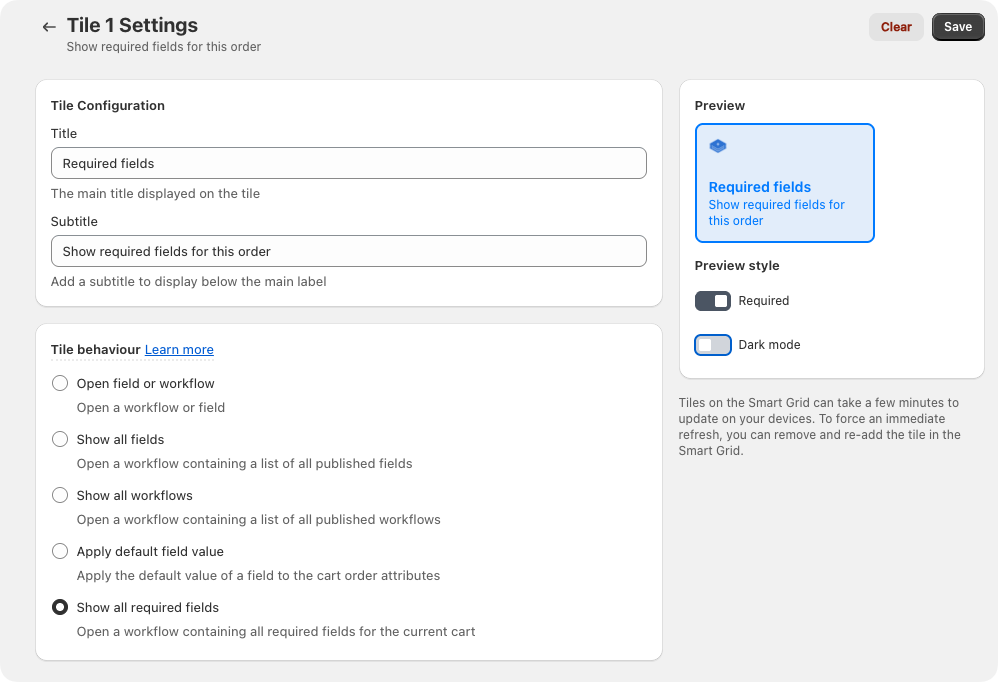
Assigning fields to tiles
You can assign fields to tiles directly from the ShopFields admin panel. When assigning a field to a tile, you can customize:
- Title: A custom name for the tile that your staff will see
- Subtitle: Additional context or instructions to help staff understand when to use this field
Available tiles
ShopFields provides 5 tiles in the Smart Grid that can be assigned to fields. This gives you the flexibility to prioritize your most commonly used fields for quick access.
If you have a use case requiring more than 5 tiles, please contact us and let us know about your use case.
Default behavior for unassigned tiles
If a tile is not assigned to a specific field, ShopFields will show either a list of your fields, or if you only have one field, that field.
- Single field published: If you only have one field published, ShopFields will automatically load that field when the tile is tapped
- Multiple fields published: If you have multiple fields published, tapping an unassigned tile will display a list of all your available fields to choose from
This ensures that all your fields remain accessible even if they're not assigned to a dedicated tile.
Adding assigned tiles to the Smart Grid
Once you've assigned fields to tiles in the ShopFields admin, you'll need to add those tiles to your Smart Grid in Shopify POS:
- Open the Smart Grid in your Shopify POS app
- Click "Add tile" to add a new tile to your grid
- Select the ShopFields app from the list of available apps
- Select the numbered tile that corresponds to the tile you assigned your field to in the admin (e.g., Tile 1, Tile 2, etc.)
The tile will now appear in your Smart Grid with the custom title and subtitle you configured, giving your staff quick access to that specific field during checkout.
Tile Configuration
Each tile can be configured with the following settings:
Title and Subtitle
- Title: The main text displayed on the tile (e.g., "Gift Message", "Membership")
- Subtitle: Optional secondary text displayed below the title
Tile Behaviour
The tile behaviour determines what happens when staff tap the tile in the POS app:
Open Field or Workflow
Opens a specific field or workflow when tapped. You can assign either:
- A single field - Opens that field for data entry
- A single workflow - Opens that workflow form
Use case: Quick access to a specific field or form (e.g., "Gift Message" field, "Customer Details" workflow)
Show All Fields
Opens a workflow containing a list of all published fields. Staff can select and fill any field from the list.
Use case: When you want staff to have access to all available fields without creating individual tiles for each one.
Show All Workflows
Opens a workflow containing a list of all published workflows. Staff can select and open any workflow.
Use case: When you have multiple workflows and want staff to choose which one to use.
Apply Default Field Value
Applies the default value of a field directly to the cart order attributes without opening any form. Only works with fields that apply to orders.
Use case: Quick actions that don't require data entry or opening the full Field (e.g., applying a default "Store Location" value, or quickly applying a binary True / False value)
Show All Required Fields
Opens a workflow containing all fields that are currently required for the cart (based on active rules or always-required settings).
Use case: Ensuring staff complete all required fields before checkout.
Published vs Draft
Tiles respect the published/draft status of their assigned fields and workflows:
- If a field is unpublished, it won't appear when the tile is tapped
- If a workflow is unpublished, it won't appear when the tile is tapped
- Draft items allow you to work on fields/workflows without affecting live tiles
Refreshing tiles
While tile behaviour settings will update as soon as they are saved, changes to the title or subtitle fields will require the Tile to refresh. To force an immediate refresh, you can remove and re-add the tile in the Smart Grid.