

Workflows
Workflows allow you to combine Fields and text blocks to create custom forms in Shopify POS. When a Workflow is submitted in point of sale, it will apply each of the Field's to the cart.
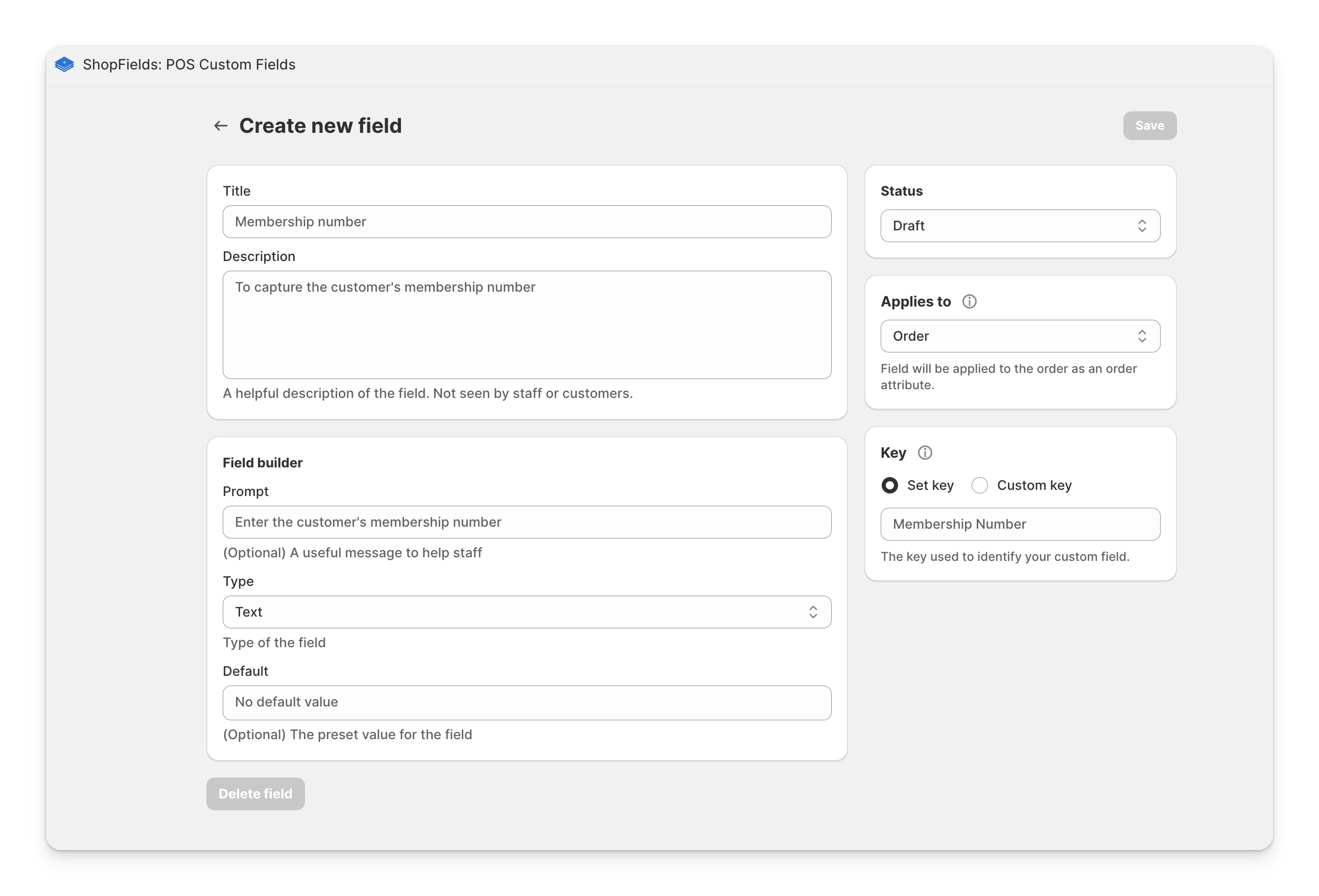
Tip: Before creating a Workflow, you should create your Fields first. Workflows are built by combining fields and blocks, so make sure you have the desired fields set up.
Components
A workflow can contain:
- Fields: Input fields that capture data (text, numbers, dates, etc.)
- Text Blocks: Static text
Creating Workflows
Using the drag and drop builder you can add in Fields that you have created. The preview will give an indication of how the form will appear in the POS app.
Refreshing Fields
If you make changes to your Field and want to see it reflected on the Workflow builder, you can tap refresh to update it.
Published vs Draft
Like fields, workflows have a published/draft status:
- Published workflows appear in the POS app and can be assigned to tiles
- Draft workflows are hidden from POS devices, allowing you to work on them without affecting your live setup
If a Field is unpublished, it will also be unpublished in the Workflow.
Required Fields in Workflows
If any field within a workflow is marked as required, the entire workflow becomes required. This ensures that critical information is always collected when the workflow is used.
Workflows vs Individual Fields
| Feature | Individual Field | Workflow |
|---|---|---|
| Components | Single field | Multiple fields + text blocks |
| Layout | Fixed | Customizable drag-and-drop |
| Data Collection | One value at a time | Multiple values in one form |
| Use Case | Simple, single data point | Complex forms with multiple inputs |
How Fields are Applied with Workflows
Each field has an "Applies to" setting that determines where its data is stored:
- Order fields: Applied to the entire order as order attributes.
- Line item fields: Applied to individual products as line item properties.
When a workflow contains multiple fields with different "Applies to" settings, each field is applied according to its own configuration. This means you can mix order-level and line item-level fields in the same workflow, and each will be stored in the correct location.
Info: Learn more about applying fields to orders and applying fields to line items, or see where field responses are stored.