Rules
Rules are conditional logic that determine when fields become required based on cart conditions. Rules can then be assigned to Fields to control when they are marked as required.
Tip: Rules are always assigned to Fields. Fields can have multiple rules assigned to them, and rules can be assigned to multiple different Fields.
How Rules Work
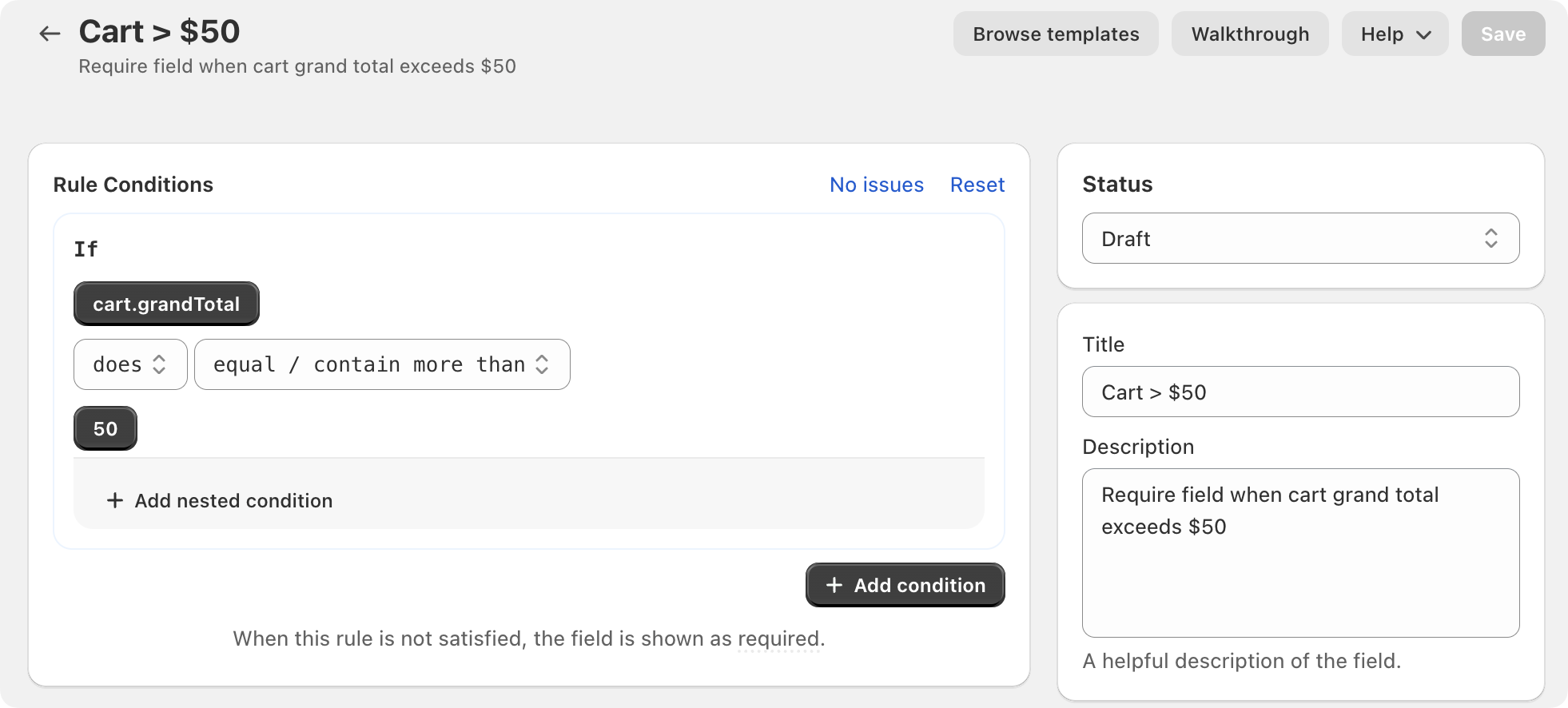
Rules evaluate conditions about the cart and, when those conditions are met, make any fields with that Rule assigned, required. This allows you to require a Field only when certain cart conditions are met.
Rule Structure
A rule consists of one or more conditions that are evaluated against the current cart state. Each condition has:
Target: The cart property or value being checked (e.g.,
cart.subtotal,cart.lineItems.list.title)Polarity: Whether the condition is positive (
does) or negative (doesNot)Operator: How to compare the target and reference (e.g.,
equal,include,containMoreThan)Reference: The value to compare against (can be a cart property or a static value)
Logical Operator: How multiple conditions are combined (
ANDorOR)
Rule Evaluation
When a tile or workflow is opened in the POS app:
Rules are evaluated against the current cart state
Each condition checks if its target value matches the reference value using the specified operator
Multiple conditions are combined using the logical operator (
ANDrequires all conditions,ORrequires at least one)If the rule evaluates to
true, assigned fields become required
Rules are evaluated as the cart changes, ensuring fields become required or optional dynamically based on the current cart state.
Field Types and Rule Evaluation
Rules are evaluated based on the type of data being compared. Different field types support different operators and are evaluated differently to help make sure data can be compared accurately.
Available Data Sources
Rules can check most values available locally on the point of sale API.
Cart Properties
cart.subtotal- Cart subtotal amount (number)cart.taxTotal- Total tax amount (number)cart.grandTotal- Grand total amount (number)cart.note- Cart note text (string)cart.lineItems.totalItems- Total quantity of all items (number)
Line Items
Line items represent the products currently in the cart, and are structured as a list (array). This means each property of a line item—such as the product title or SKU—is actually represented as an array, with one entry per item in the cart. When you check these properties in a rule, you're comparing against all the items in the cart (for example, checking if any or all product titles contain a certain value).
Product tags are also available to be used in rules.
Logical Operators
When you have multiple conditions, use logical operators to combine them:
AND: All conditions must be true (default)
OR: At least one condition must be true
Example: Require field when (cart total > $50) OR (cart has product with "Gift" tag)
Making Fields Required
Fields can be made required in two ways:
Always Required: Mark the field as "Required" in field settings. The field will be required on every order.
Conditionally Required: Assign one or more rules to the field. The field becomes required only when the rule conditions are met.
You can combine both approaches, but typically you'll choose one based on whether the field should always be required or only conditionally required.
What Happens When a Field is Required
When a field becomes required (either always required or through a rule), ShopFields provides visual feedback in the POS app:
Tile assigned to a field that is required: If a tile is assigned to the required field, the tile will be highlighted to indicate the field needs to be completed.
Tile assigned to show all required fields: If a tile is not assigned to a specific field (or is configured to show all required fields), the tile will display a badge showing the number of required fields that are missing.
You can also optionally show a message, or open the field modal.
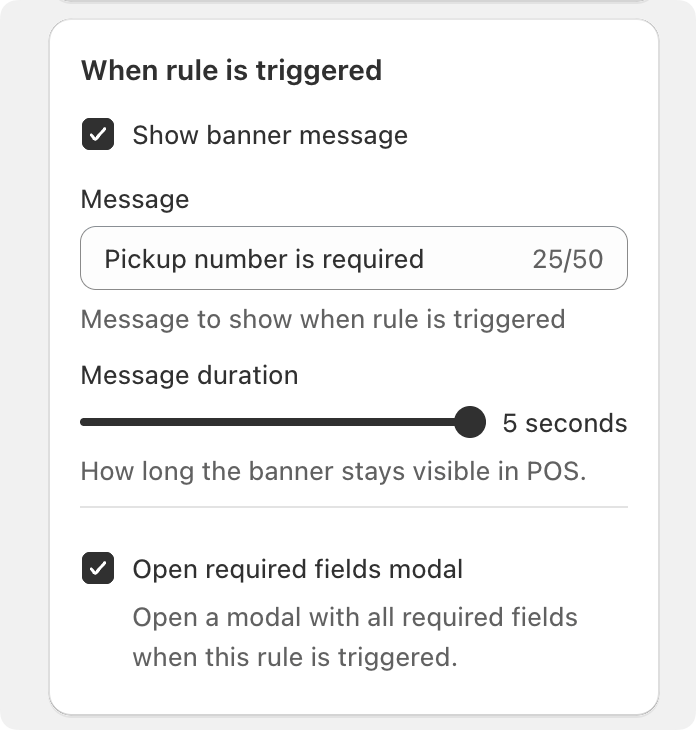
Show a message when rule is triggered
When assigning the rule to a Field, you can provide a message that will be shown when the rule conditions are met.
With this approach you can provide a different message for different fields, while still using the same rule to validate both. For example, a rule that checks if the cart is >$100, and asks separately to complete a customer ID check field and a marketing attribution field.
Open a field when rule is triggered
If you want to remove an additional step for required fields, you can configure your rule to open any fields that have the rule assigned.
The rule can optionally show a banner message, or open the modal containing the field.
Checking all matching items have a field
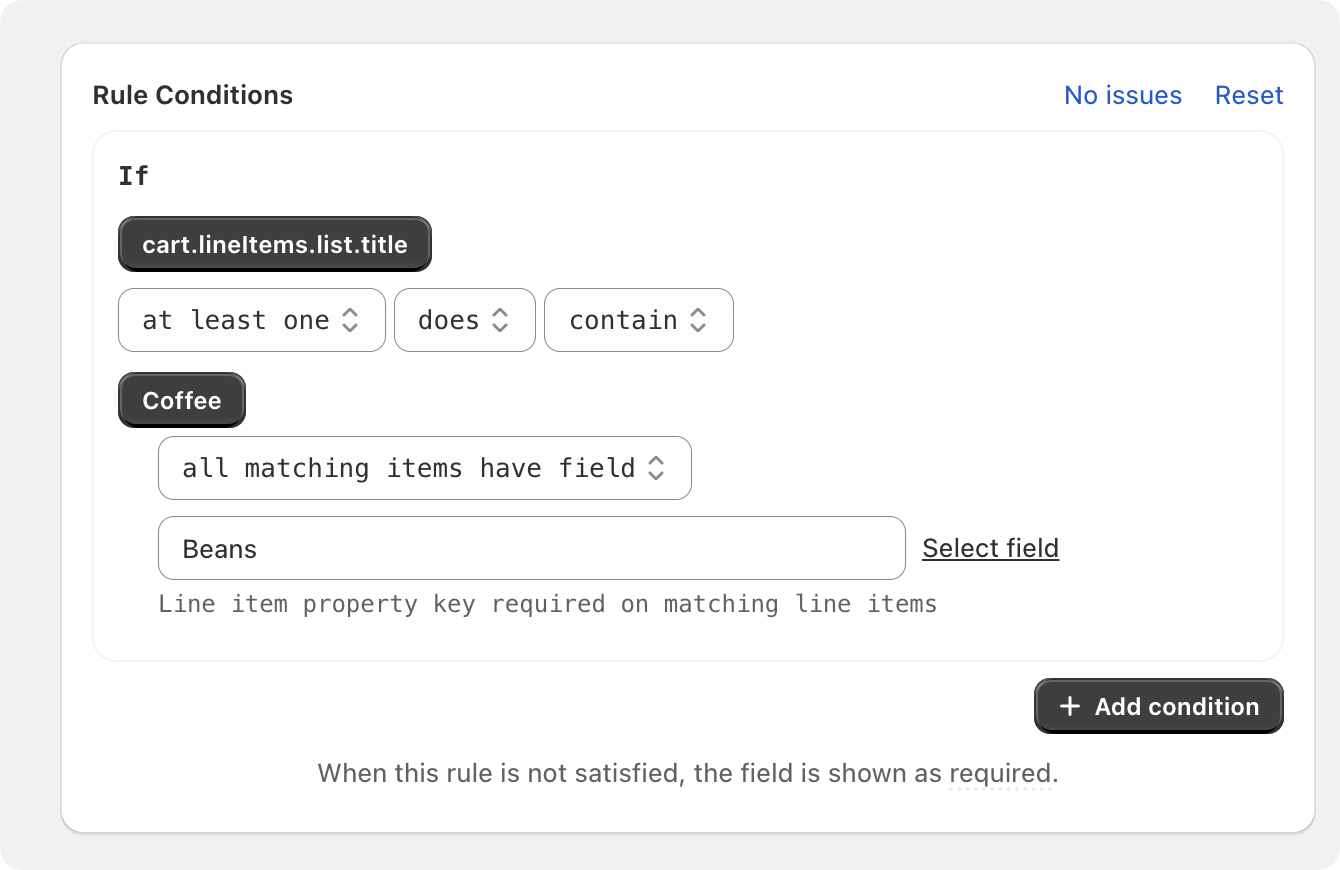
By default, rules will "pass" if at least one item in the cart contains the field.
In reality you typically want all items that meet the rule conditions, to have that field applied.
ShopField's rules allow you to do that by choosing the "all matching items have field" operator.